
Setting Up Auto-Replies to SMS Text Messages
You can set up automatic replies to patient text messages sent through your Akute virtual phone. This ensures patients know when to expect a response during business hours or after hours.
Step 1: Navigate to Communication Settings
In the left-hand navigation bar, go to Settings > Communication > Virtual Phone.
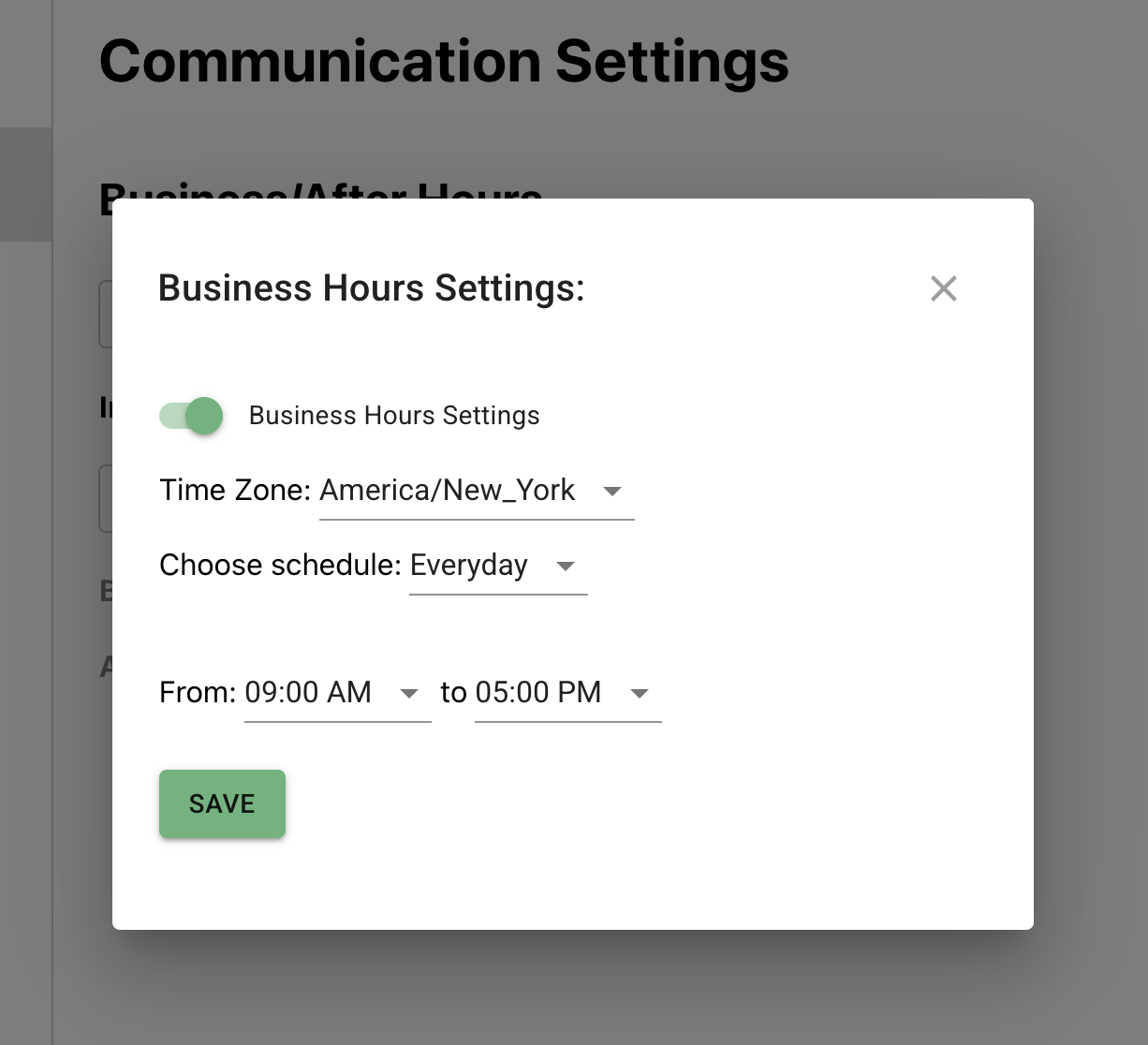
Step 2: Edit Business Hours
- Click Edit Business Hours Settings.
- Set your time zone, schedule (everyday, weekdays, or custom), and business hours.
- Click Save.
Step 3: Add Auto-Replies
-
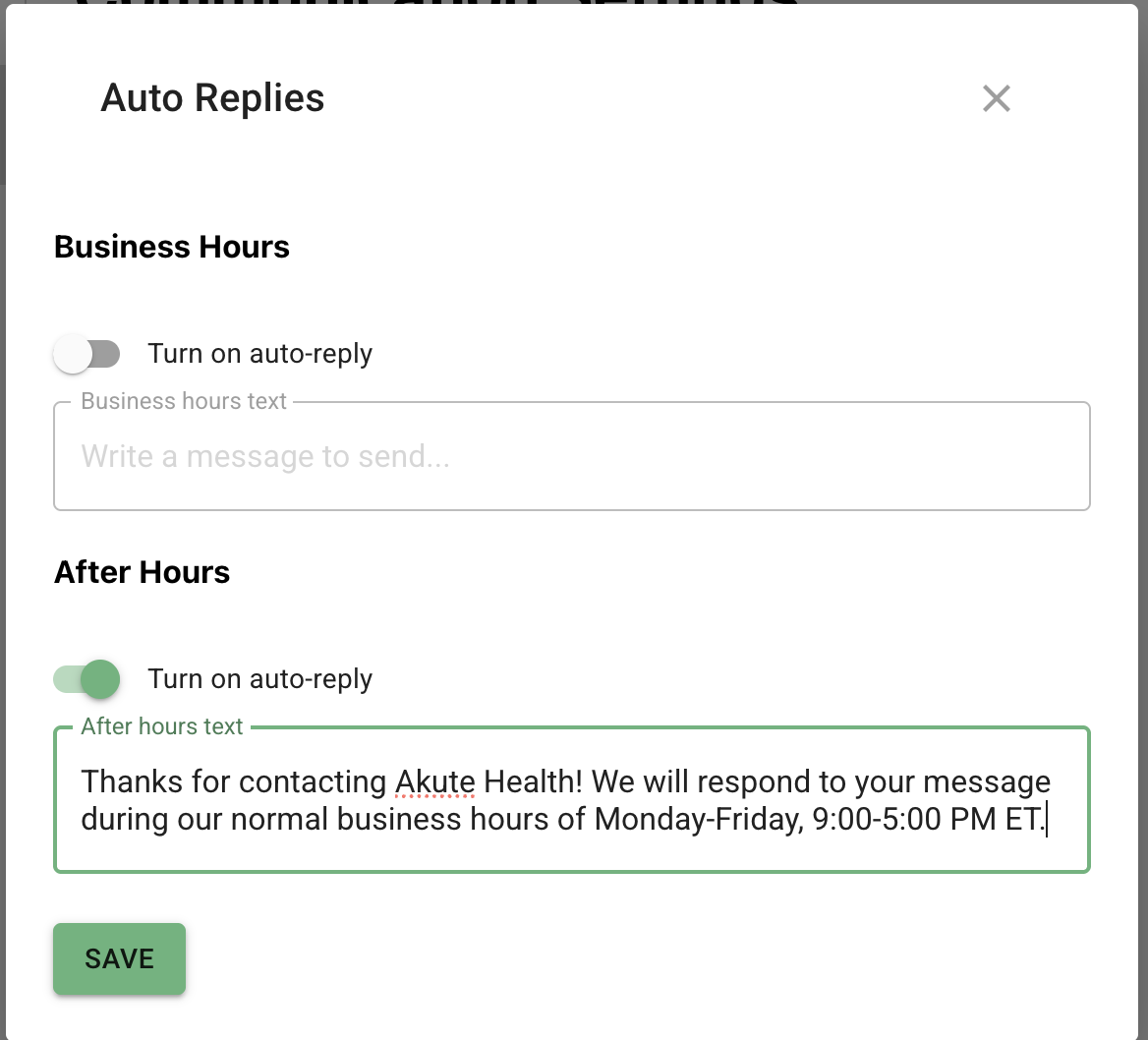
Click Edit Auto-Replies.
You’ll see two options:
- Business Hours Reply: Sends when patients text you during your business hours.
- After Hours Reply: Sends when patients text you outside of your set business hours.
- Toggle on the reply you want to use and type your custom message.
- Click Save.
Example Messages
Business Hours:
“Thanks for your message. Our team will reply as soon as possible.”
After Hours:
“Thanks for contacting [Practice Name]! We’ll respond during our normal business hours of Monday–Friday, 9:00 AM–5:00 PM ET.”
That’s it! Auto-replies will now be sent automatically when patients reach out via SMS text message to your virtual phone number.