
Creating Membership Agreements and Consent Forms
If your practice uses our Hint Integration for membership management, you can create membership agreements, consent forms, and other documents directly in Hint. These documents can be published for patients to review or accept during your online signup flow, depending on your configuration.
Below is a walkthrough of how to create and customize these documents.
1. Navigate to Documents in Hint
- Log in to your Hint account.
- Go to Admin (gear icon) in the left-hand navigation.
- Select Documents.
You will see a list of existing documents and the option to create a new one.
2. Create a New Document
Click New Document
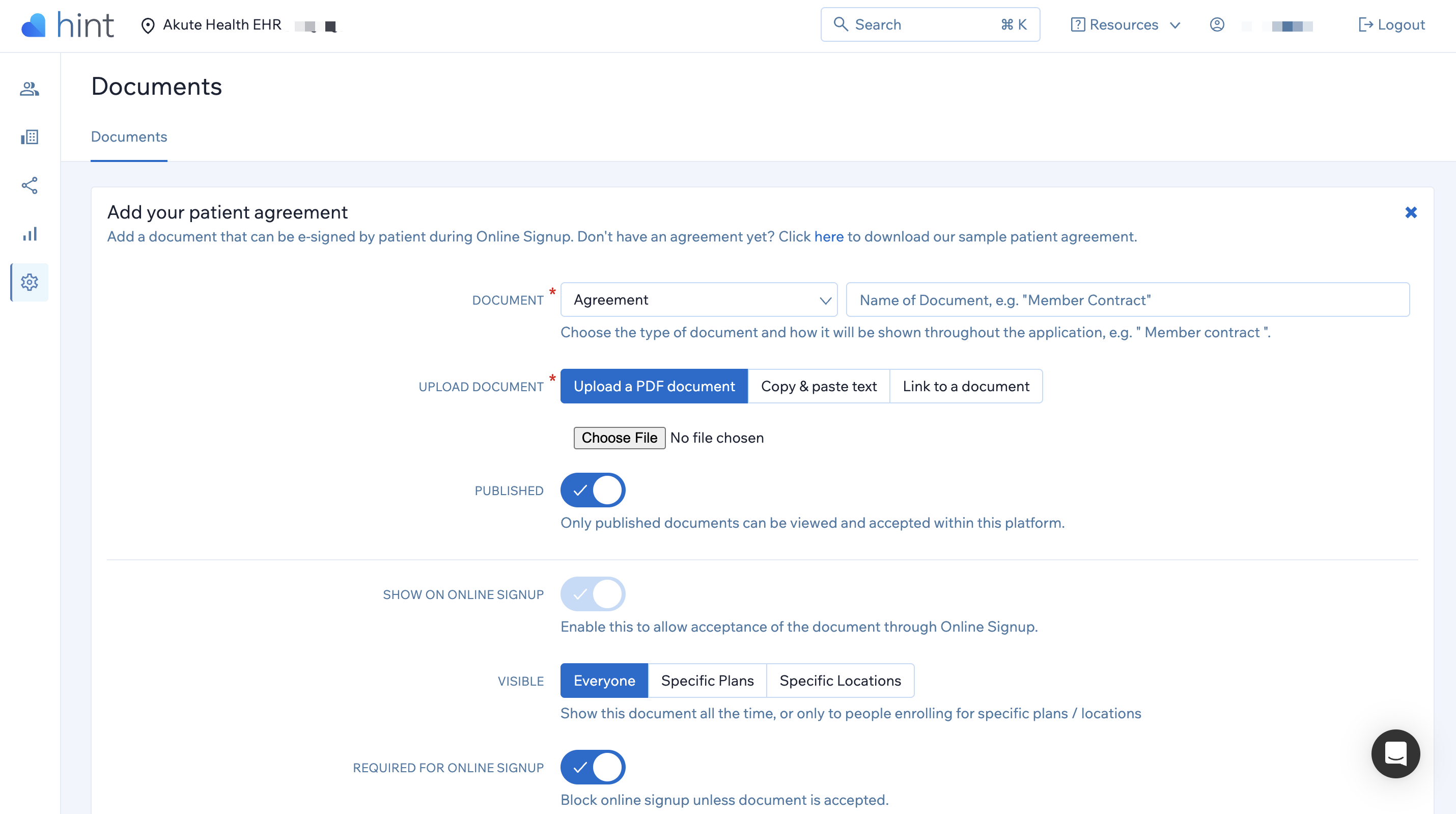
You will see the document editor with several options:
Document Type
Choose the category:
- Agreement
- Contract
- Terms and Conditions
Document Name
Enter the name patients will see (e.g., “Privacy Policy,” “Telemedicine Consent,” “Membership Agreement”).
Upload, Create, or Link the Document
You can add your content in one of three ways:
- Upload a PDF
- Copy & paste text (using the built-in editor)
- Link to a document
3. Publish the Document
Enable the Published toggle.
Only published documents can be viewed or accepted by patients.
4. Configure Sign-up Settings (Optional)
These settings determine whether the document appears during online signup.
Show on Online Signup
Turn this on if you want patients to review or accept this document while enrolling.
Visibility
Choose who should see this document during signup:
- Everyone
- Specific Plans
- Specific Locations
Required for Online Signup
Enable this if patients must accept the document before completing signup.
This is optional. Documents do not need to appear during signup unless you choose to enable them.
5. Set Acceptance Requirements (Optional)
If the document is shown during signup, you can choose how patients accept it:
Acceptance Type
- Checking a checkbox
- Typing patient name
Acceptance Text
Edit the acknowledgement text that patients will see (e.g., “By signing below, I confirm that I have read and understand this consent form.”)
The preview below will update as you modify the text.
6. Save the Document
Click Create (or Update when editing) to finalize the document.
Once published, the document is available in Hint based on the visibility and signup settings you selected.